
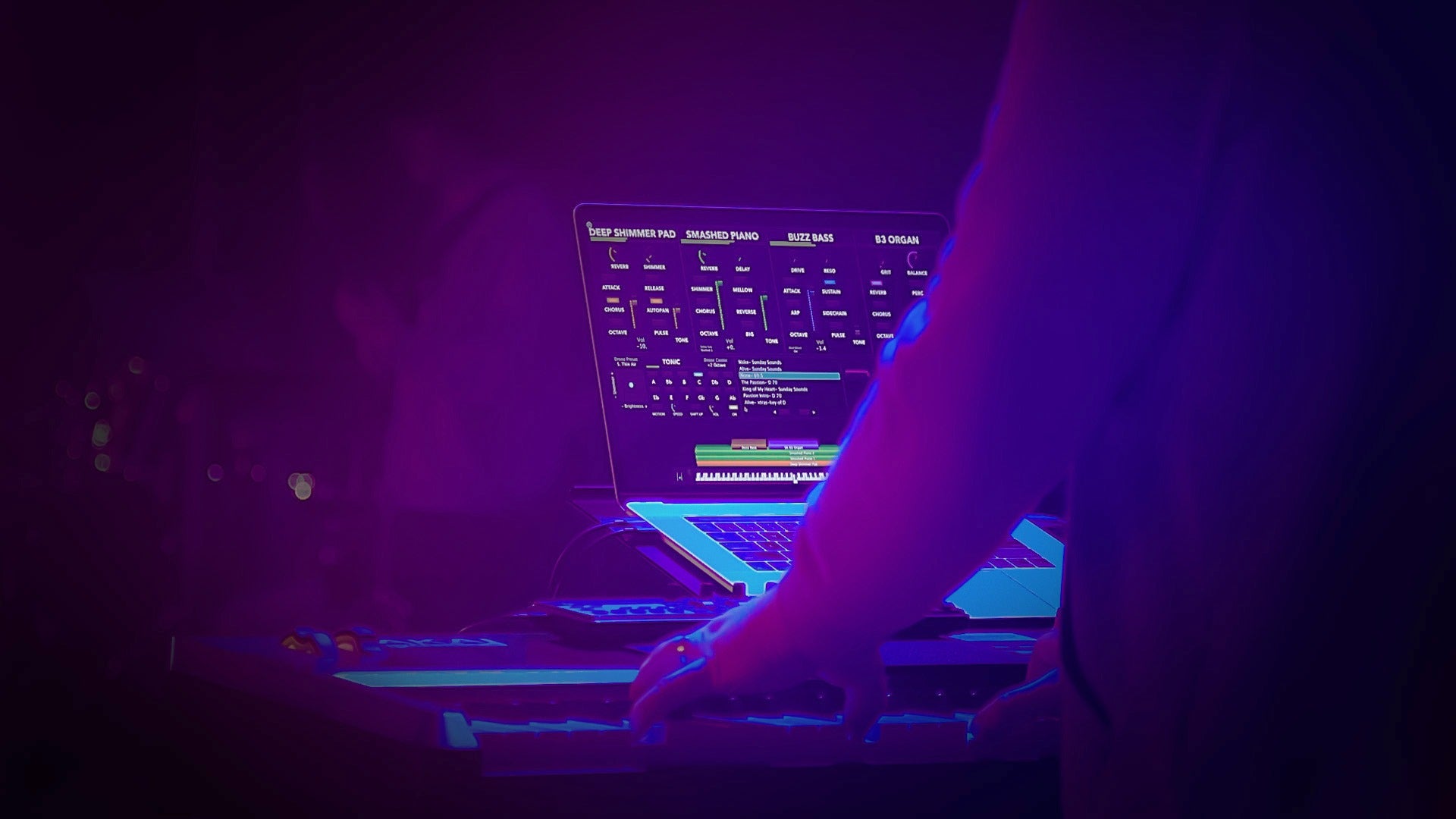
Patch Snapshots are one of the most powerful features in the Sunday Keys App!
You can use Snapshots to automate your volume, effects, mod wheel, Tonic Pad and more! No more taking your hands off the keyboard to adjust multiple faders and controls, simply tap a Snapshot, and all the pre-programmed automation begins to work!
You can even customize exactly how long you want each individual Snapshot to take, from instant, to multiple bars all locked to your tempo!
What is a patch snapshot?
Every patch in the Sunday Keys App has a default snapshot, a saved state of all your sound parameters. You can add up to five snapshots per patch, and switching between them triggers a smooth transition rather than an abrupt cut.

When you select a new snapshot mid-transition, Sunday Keys intelligently recalculates and begins fading toward the new destination, it doesn't reset and start over.
And don't worry, you can override any parameter mid-Snapshot, so if you don't actually want a bright synth volume increase, you can grab the fader and bring it back down, without breaking the rest of the Snapshot automation.
Setting up default snapshot behavior
Before building your first multi-snapshot patch, it's worth dialing in your global defaults. Navigate to the hamburger menu → Settings → Snapshots. These settings define the timing and behavior for every new snapshot you create.

Transition type: time vs. beats
You can measure transitions in seconds (up to 10) or in beats and bars (up to 4 bars). The beats option is tempo-synced to your tap tempo, so a one-bar transition at 60 BPM takes twice as long as one at 120 BPM. This makes it incredibly musical and natural to use in a live worship context, especially if your team plays to a click.
Effect transition behavior
Audio effects can fade between on/off states, or snap at the start, middle, or end of the transition. Fade is the most natural-sounding option for reverb and delay.
MIDI effects can't be faded, they snap at the start, middle, or end. Choose based on when in the transition you want the effect to kick in or drop out.
Mod wheel and Tonic Pad toggles
Two global toggles control whether new snapshots store the mod wheel position and Tonic Pad settings by default. A practical starting point: leave mod wheel on, Tonic Pad off. Tonic Pad automation is powerful but is better handled per-snapshot once you need it, more on that below.
Building a multi-snapshot patch
Here's a practical example that mirrors how snapshots work in a real worship set. Start with a grand piano and a soft pad layer at low volume, your intro sound. Save that as Snapshot 1.
Snapshot 1 — Intro: Piano full volume, pad subtle, mod wheel low for a soft brightness. No delay.
Snapshot 2 — Mid: Pad volume up, mod wheel raised for more brightness, delay faded in. Default transition time.
Snapshot 3 — Big: All sounds and mod wheel up, an additional lead layer in the right hand, this is a bright, full sound for a big chorus or bridge.

Naming tip: Long press (or right-click on Mac) any snapshot to rename it. Labels like "Intro," "Mid," and "Big" are far more useful in a live setting than "Snapshot 1, 2, 3," especially for volunteers.
Custom timing per snapshot
The global default timing is a starting point, not a constraint. Long press (right click on Mac) any snapshot and choose Customize to override timing for just that snapshot. This is where snapshots become truly expressive.

Custom timing is independent per snapshot, so you can have a slow intro build alongside a punchy fast chorus transition, all within the same patch.

Reordering snapshots
Sunday Keys always selects the first snapshot automatically when you load a patch. Long press a snapshot and choose Rearrange to drag them into the order that matches your song's arrangement. This is especially useful if the song arrangement changes during rehearsal.
Automating the Tonic Pad with snapshots
This is the newest addition to the snapshot feature. Rather than manually adjusting your Tonic Pad settings between song sections, you can store a unique Tonic Pad state inside each snapshot.

How to enable it
By default, Tonic Pad control is off globally (as recommended above). To enable it for a specific snapshot, long press that snapshot and choose Customize.
Then toggle on "Snapshot Adjusts Tonic Pad." Then dial in the pad settings you want stored: preset, layer volumes, brightness, and save the snapshot.

Three levels of Tonic Pad intensity
A practical example: In Snapshot 2, . In Snapshot 3, s
Snapshot 1 — Intro: store a warm, subtle Tonic Pad preset in Snapshot 1 for the intro.
Snapshot 2 — Mid: increase the bright or strings layer slightly for a energy lift
Snapshot 3 — Big: switch to a completely different, brighter shimmer preset for a big bridge.
Crossfade: Each snapshot recalls these settings with the crossfade timing controlled by the Tonic Pad's crossfade knob.
Key Change: You can also store different keys in your Tonic Pad snapshots — making built-in modulations and key changes completely hands-free.
Patch lock: Turn on patch lock to have your Tonic Pad settings automatically recalled every time you return to a patch, even if you changed them while on a different patch.
This makes it easy to set and forget your Tonic Pad per song without any mid-set adjustments.
Power user: using Easy Chord to switch layer ranges
One of the more creative snapshot techniques is using the Easy Chord effect to snap between two different playable layer ranges within a single patch, without adding a second duplicate sound.

For example: In your default snapshot, Easy Chord is off and the pad layer covers the full keyboard range.
In your "big" snapshot, Easy Chord is on with a custom preset that triggers full pad voicings from left-hand bass notes only, freeing up the right hand to play a lead part.
Switching between these snapshots effectively changes the behavior and range of your pad instantly, without any extra layers consuming CPU or DSP resources.
You can visualize the playable layer range when Easy Chord is on, by toggling on "Dynamic Layer Ranges" in the Sunday Keys App Performance Settings.
 Easy Chord Off:
 Easy Chord On:

Automate snapshots with Loop Connect
If your church uses the Prime Multitrack App, take advantage of the Loop Connect integration! Snapshots can be automated to change as your tracks play. This means your keys sounds can build and transform with the arrangement automatically, without you pressing anything. Your hands stay on the keys the entire time.
Snapshots are only available inside Sunday Keys for iPad and Mac. Make sure you're on the latest App version and have updated your sound library in the Sound Downloads Manager to access all the latest patches built around these features.
Love this information. I’m going to try it out. Could I use this to fade out a song completely?